
It can be confusing to choose the best video translator app. The majority of these tools offer “instant global reach,” “high-quality dubbing,” “1-click subtitles,” or “multilingual content marketing.” But when you try them, you will notice significant differences in accuracy, speed, and cost. So, with so many apps claiming to be the best, how can you tell which one is really worth your time and money?
This list showcases 10 of the best video translation apps, explaining their main features, pros and cons, and real prices, so creators and influencers can make more informed decisions. You’ll also see why brandID stands out as the best video translator app for turning your content into a global brand—so keep reading to find the perfect fit for your needs and budget.
Why Use Video Translator Apps?
Video translation apps do more than translate one language into another. They help you talk to people around the world, support your personal branding, and turn each video into something useful for many countries. Using the best video translator apps can help you achieve the following goals:
- Reach a wider global audience: When you translate your videos, people in many countries can understand you. By translating the audio and subtitles, more viewers can watch, enjoy, and share your content.
- Improve accessibility and inclusivity: Translated subtitles and dubbing help people who do not speak your language well and people with hearing problems. This technique makes your channel more welcoming and shows you care about every viewer.
- Boost SEO and online presence: Videos in multiple languages can appear in more search results. With video translation and localization, you can drive more free traffic from search engines and achieve better ad results.
- Strengthen brand image: When you localize your videos, people see that you respect their culture and language. This approach builds trust and makes your brand and personal branding look more professional and global.
- Unlock new markets and growth opportunities: Speaking your audience’s language increases watch time, likes, and sales. Video translation lets you test new regions and turn a single video into multiple versions for different markets.
7 Essential Factors in Choosing the Best Video Translator App
There is more to choosing the best video translator app than just advanced AI. If you want more people around the world to watch your videos, you need a tool that is fast and easy to use, without being too expensive. Here are some key factors that can help you choose the best online translation service:
- Accuracy and Translation Quality: Your app should produce subtitles and dubbing that sound natural to native speakers of the language.
- Supported Languages and Dialects: The more languages and local versions the app supports, the more people you can reach. At the very least, it should support big languages like English and Spanish.
- Speed and Performance: You should not wait a long time for a short video. A powerful tool can translate videos in minutes so that you can post more often.
- Voice Cloning and Lip-Sync: Some apps can mimic your voice and match lip movements to the new audio. These key features can make the video feel more real and less like a robot is talking.
- Editing and Customization Tools: AI can make mistakes. You need easy-to-use editing tools to fix translations, adjust subtitle timing, adjust font, size, and color, and more to fit your brand.
- Ease of Use and Interface: The app should be simple to use. You should be able to upload, translate, check, and export without needing tech skills.
- Affordable Pricing: Choose pricing that fits your budget now and can grow with you later, so you can keep quality high as you make more videos.
10 Best Video Translator Apps Reviewed
To truly connect with viewers who don’t share your language, you need competent AI video translators. So, let’s explore 10 of the best tools for quickly translating your videos and generating captions in multiple languages at once.
| 1. brandID | 2. HeyGen | 3. Vizard |
| 4. Filmora | 5. CapCut | 6. Synthesia |
| 7. ElevenLabs | 8. Veed | 9. Kapwing |
| 10. Akool |
1. brandID AI Video Translator
brandID is an AI video translator app that can turn your videos into 200+ languages while keeping their voice and style. It adds subtitles and new voice-overs quickly, so you can easily share the same video on TikTok, Instagram, and YouTube.
Beyond AI video translation, brandID gives creators a complete growth toolkit. Use brandID’s smart link in bio to drive traffic, set up your online store, sell digital products like videos or PDFs, and boost affiliate marketing performance—all inside brandID’s simple, creator-friendly dashboard.
Next, we’ll walk you through three powerful ways to translate your videos with brandID, so you can choose the method that fits your workflow:
- Method 1: Through your brandID dashboard
- Method 2: Through the Chrome extension
- Method 3: Through the mobile app.
Below, we’ll break each option down step by step.
Method 1: Translate videos through Your brandID Dashboard
- Visit brandID AI video translator and sign up for Free.
- Enter your dashboard and scroll down to find AI Video Translator.
- Click the “Translate a Video” button, then upload your video. Choose a name for your video.
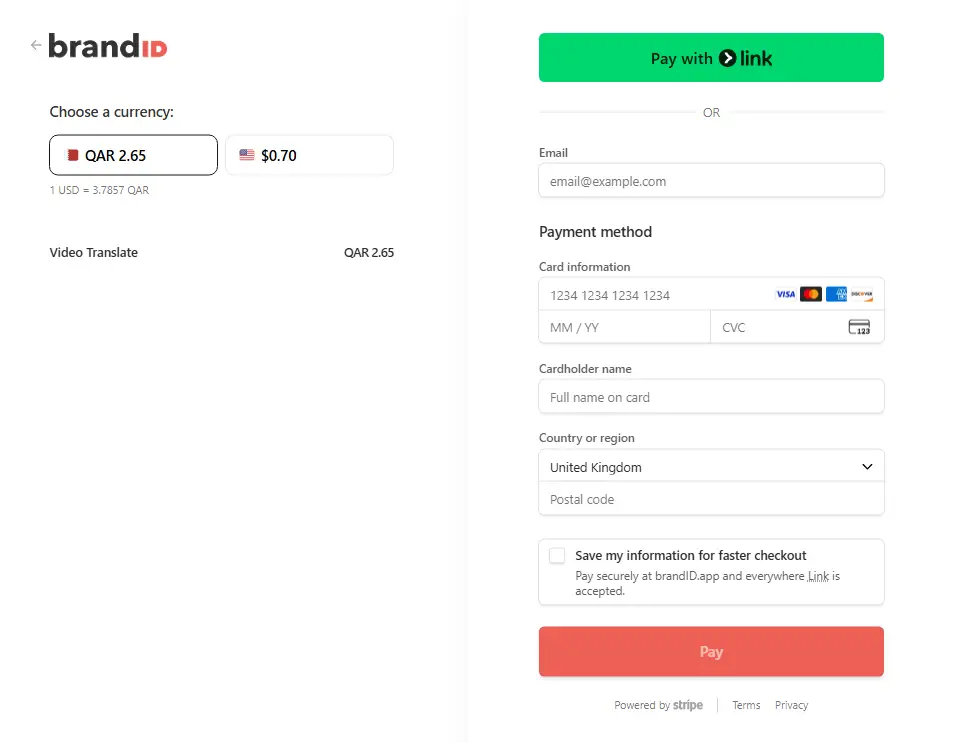
- Choose your language and make the payment to start translating your video in seconds.
Method 2: Translate Videos with brandID’s Chrome Extension
- You can also download the brandID Video Translator Chrome extension from the Chrome Web Store.
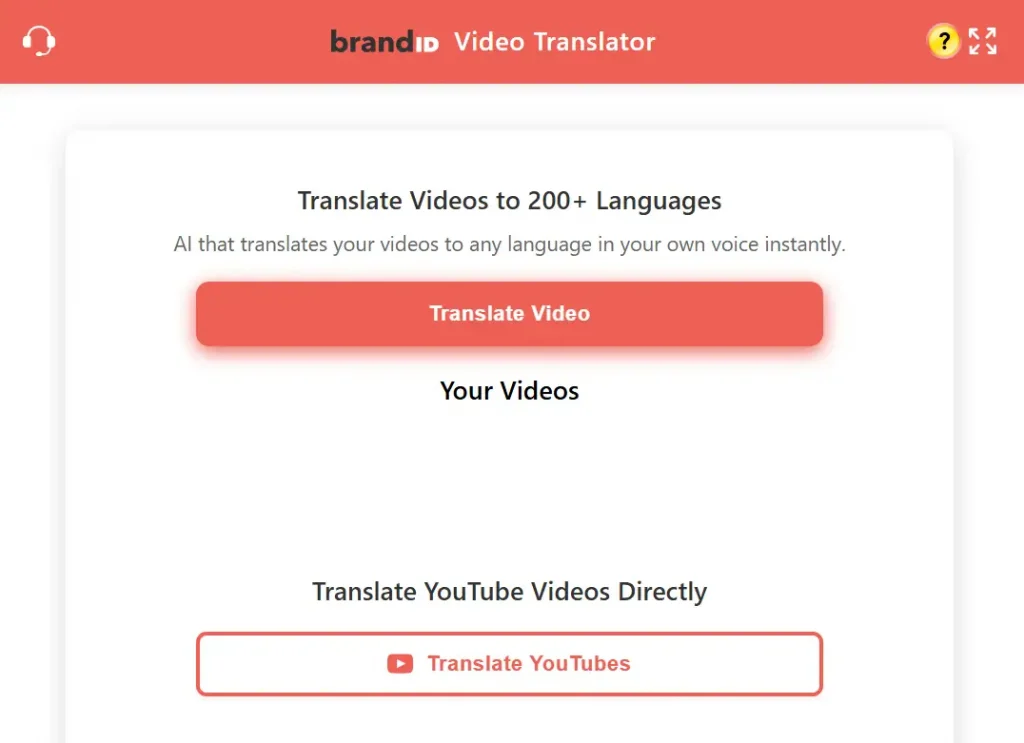
- If you want to translate your YouTube videos, copy the YouTube Video URL you want to translate.
- Now, use the “Get cookies.txt LOCALLY” extension to export your YouTube cookies. Finally, click on the “Translate YouTube” button.
- When you upload and translate videos from the desktop, click the “Translate Video” button, select your language, and then click the “Translate” button. Wait until your video is uploaded. Make the required payment per video, click the button that appears on your video, and then you can translate the videos in a single click.
Method 3: Translate Your Videos with brandID’s Mobile App
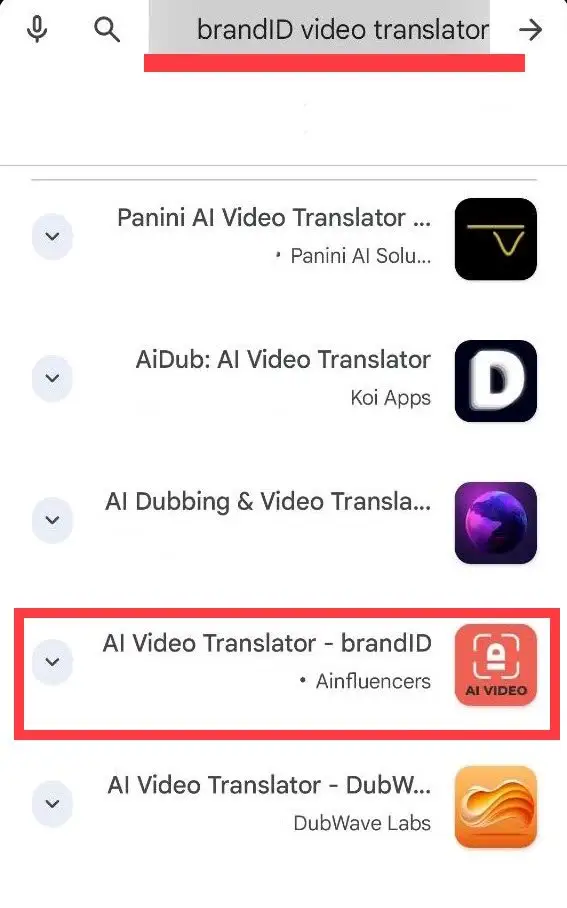
- Install the app: Search for “brandID – AI Video Translator” in the App Store or Google Play Store and download it. Open the app and create a free account or sign in.
- Start a new translation: Tap the “+ Translate a Video” button. Then select and upload the video you want to translate.
- Choose the target language(s): The translator supports many languages. Pick the language(s) you want to translate your video into. Finally, pay the required payment.
- Let the brandID video translator app work: When you start the translation, the app uses AI to process the video. The brandID video translator will generate a new voiceover that preserves the original tone and syncs with the visuals.
- Review & download: Once processing finishes, preview the translated video. If it looks right, download it to your phone. You can also go back and select additional languages to create more versions. Use the app’s sharing options to share the translated video to TikTok, Instagram, YouTube, or other platforms.
By following these steps, you can quickly translate your videos on either Android or iPhone, keeping your original voice’s tone and style while making the content accessible to a global audience.
brandID AI Video Translator App (Pros & Cons)
| brandID Pros | brandID Cons |
| Translates videos into more than 200 languages | Human review is still necessary for complex video content; combining AI with human review yields better engagement and accuracy. |
| Preserves your voice and style; our instant voice translation and dubbing keep the original speaker’s tone, accent, and brand voice. | |
| One‑click publishing for social platforms; upload once and push translated videos to TikTok, Instagram, and YouTube in just a few taps. | |
| Easy to use, no extra effort; you upload once, choose your languages, and brandID handles the heavy lifting in the background. | |
| Authentic voice and brand personality; brandID AI video translator focuses on “Instant Translation, Authentic Voice” so your brand feels the same in every language. | |
| Real‑time translation for broadcasts; ideal for live shows, webinars, and panel discussions where you need instant multilingual output. | |
| High‑quality multi‑speaker support; perfect for podcasters and shows with multiple speakers, allowing each person to preserve their own cloned voice across languages. | |
| Pay‑as‑you‑go pricing; brandID offers dubbing in 200+ languages with voice cloning and a flexible credit model, so you only pay for what you use instead of locking into a subscription. |
brandID Pricing
The brandID video translator app is free to download, but brandID uses a credit-based pricing model that requires purchasing credit packs for translations. The in‑app purchase section lists 50 credits for $0.49, 100 credits for $2.99, 500 credits for $5.99, 800 credits for $8.99, and 1,000 credits for $14.99.
2. HeyGen Video Translator
HeyGen is a powerful AI video editor and translator that lets you upload videos from your device, YouTube, or Drive, and instantly localize them with AI-cloned voices, accurate lip-syncing, and subtitles.
Supporting 175+ languages and dialects, it offers hyper-realistic lip-synced dubbing or faster audio-only translation, while keeping your natural tone. Trusted by brands like Coursera and Harvard, it is often considered the best AI video translation tool for creators seeking studio-level results without a huge production budget.
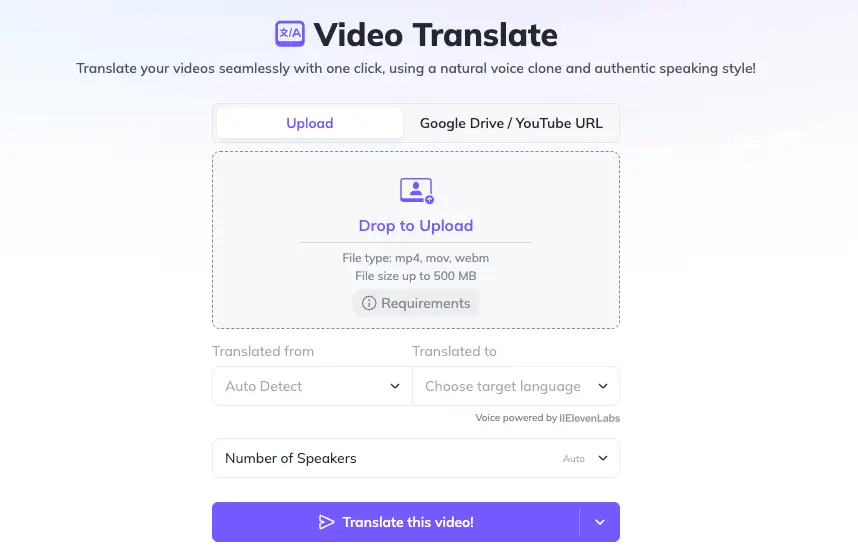
How to Use the HeyGen Video Translator?
- First, open HeyGen Labs and choose how you want to upload your content. Either upload a video from your computer or paste a YouTube or Google Drive link.
- Next, wait for the video to finish uploading so the AI video translator can process the audio and prepare it for translation.
- Then, select the target language. You can choose from 175+ supported languages and dialects.
- After that, pick your translation mode. Hyper-realistic translation when the speaker is visible, or faster audio dubbing only when the face is hidden or small.
- Additionally, customize the output by enabling AI voice cloning, subtitles, and video localization options so the tone and style match your original content.
- Finally, preview the translated video, make any minor edits if needed, and export or publish it for your global audience.
Heygen AI Video Translator (Pros & Cons)
| HeyGen Pros | HeyGen Cons |
| Supports 175+ languages and dialects, great for global brands, YouTubers, and educators. | The free plan is heavily limited with short videos, watermarks, and low monthly credits. |
| Voice cloning keeps the original speaker’s identity, tone, and pacing across languages. | Pricing can feel high for businesses that translate large libraries of content. |
| Much faster and cheaper than traditional human dubbing, suitable for scale. | Some users report slow support responses and occasional billing or support frustrations. |
| An all-in-one platform where you can create avatar videos, edit, and translate in one place. | AI translation provides limited control over terminology, so sensitive content still needs human review. |
| Intuitive and beginner-friendly interface, even for non-technical marketers. | |
| High user satisfaction and positive reviews on major software review sites. |
HeyGen Pricing
Here’s a pricing breakdown for HeyGen’s AI video translator:
- Free Plan: $0/month; allows up to 3 videos monthly, each up to 3 minutes.
- Creator Plan: $29/month (or $24/month if billed annually), includes 120 translation minutes per month.
- Team Plan: $39 per seat/month (or $30 per seat/month if billed annually), includes 120 translation minutes per seat per month.
- Generative Credit Packs: $15/month (or $150/year) for 300 credits, with 1 minute of translation costing approximately five credits.
3. Vizard AI Video Translator
Vizard AI video translator is an efficient tool that streamlines video translation and dubbing. It supports over 100 languages, allowing creators to expand their global reach effortlessly.
What sets Vizard apart is its full suite of editing tools, which enable video cuts, voice-over translation, and subtitle customization in one place. It’s faster, more accurate, and cost-effective, turning it into one of the best video translation apps for influencers and content creators seeking efficiency and success.
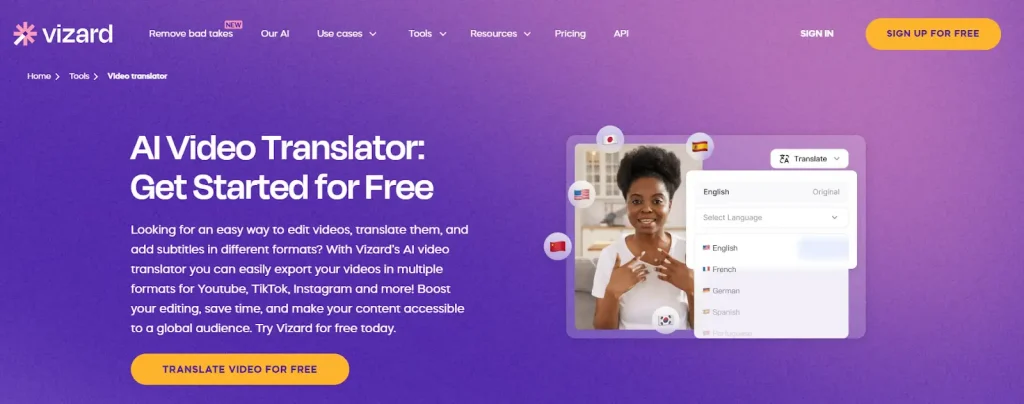
How to Use Vizard AI Video Translator?
- First, sign up for free and log in to get started.
- Next, upload the video you want to translate. You can do this directly from your computer or import it from platforms like YouTube or Zoom.
- After uploading, go to the ‘Subtitles’ section and click the ‘Translate’ button. Select the language you want to translate your video into.
- Once the video is translated, you can customize the subtitles. You can adjust the font, style, and timing to match the tone and pace of your video.
- Finally, preview the translated video, make any necessary edits, and export it. Download the video once it’s ready to share with your audience.
Vizard AI Video Translator (Pros & Cons)
| Vizard Pros | Vizard Cons |
| Supports over 100 languages | Free plan limitations: The free plan has restrictions on video length and features. |
| Automatically generates subtitles and translates audio quickly. | Accuracy can vary; May struggle with very fast speech, slang, or heavy accents. |
| Edit videos, translate voice-overs, and customize subtitles in one platform. | Limited free features; Some features are only available in paid plans, limiting full access for occasional users. |
| Integrates with major platforms; Schedule and publish directly to YouTube, TikTok, etc. | Relatively high cost for heavy use – Can become expensive for users needing large volumes of video translations. |
| Optimizes content for social platforms; formats clips for TikTok, Instagram, and YouTube, and auto‑generates captions/hashtags | No full control over translation style; May not offer strict control over terminology or advanced video localization. |
| User‑friendly interface; intuitive dashboard with minimal learning curve | No mobile version; currently desktop‑only |
| Collaborative workspace; real‑time collaboration lets teams edit and review clips together | |
| Multilingual subtitles & translation; supports automatic captioning and translation into multiple languages | |
| Templates, overlays & brand kits; built‑in templates and overlays give videos a polished look quickly | |
| Browser‑based, no software install – all processing happens online; AI editing built in | |
| Strong customer support & updates; reviewers praise responsive support and frequent tool improvements | |
| Analytics & platform‑specific ratios; provides engagement metrics and supports multiple aspect ratios; AI tools suggest captions and hashtags |
Vizard Pricing
Vizard AI Video Translator offers a credit-based subscription model, with each credit equaling 1 minute of video. Here’s a simple breakdown of the pricing:
- Free Plan: $0/month with 60 credits (approx. 60 minutes) per month. Includes 720p video exports, a private workspace, and 3 days of storage.
- Creator Plan: $29/month or $14.50/month if billed annually. Provides 600 credits/month, 4K exports, no watermark, unlimited video storage, and social media scheduling.
- Business Plan: $39/month per user or $19.50/month if billed annually. Includes 600 credits/month, team collaboration features, and management for up to 20 social media accounts.
4. Filmora
Filmora is an automatic video translation software that can translate videos into more than 23 languages. It uses innovative technology to provide highly accurate translations, achieving over 95% precision. The software also includes lip-syncing capabilities, resulting in more natural, professional content.
What sets Filmora apart is its unique ability to translate YouTube videos and other content using AI-powered voice cloning technology that maintains the emotion and tone of the original speaker. Additionally, Filmora offers speech-to-text capabilities, generating subtitles and translating them with ease.
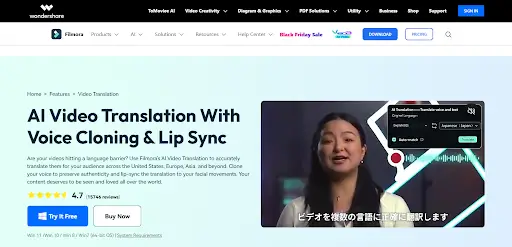
How to Use Filmora AI Video Translation Tool?
Here’s a simple, step-by-step guide on how to use Filmora’s AI video translator software:
- First, click the Import icon to upload the video or audio file you want to translate, then drag it to the timeline.
- Next, locate the AI Video Translation icon in the timeline toolbar. Choose your target language and preferred translation mode, then click Translate.
- Finally, wait for the translation to finish. The translated subtitles and audio will be synced. Preview the video, make any necessary edits, and hit Export to save your translated video.
Filmora Video Translation (Pros & Cons)
| Filmora Pros | Filmora Cons |
| Text-to-speech feature: Generates sound files for text | Imperfect lip-sync; Sometimes requires manual adjustments |
| Editing flexibility: Allows editing translated text for accuracy | Translation quality varies; Struggles with complex linguistic nuances |
| Fast, accurate, and affordable video translation | Internet & hardware demands; Cloud-based AI translation service may slow down on large projects or on weaker computers |
| Voice cloning & lip-sync; Translates while syncing lip movements | No free version; Only available on paid plans |
| Multilingual support; Translates into multiple languages | Limited advanced editing; Requires additional tools or purchases |
| User-friendly workflow; Easy drag-and-drop editor | Potential learning curve; Navigation may take time to master |
| Affordable AI translation | |
| SRT import & subtitle editing; Flexible subtitle management |
Filmora Pricing
Here’s a summary of Filmora’s pricing for AI video translation:
- AI Translation Credits: Filmora charges 16 credits per minute for voice and subtitle translation and five credits per minute for subtitles only.
- Free Plan: $0, includes ~100 AI credits per month with limited features (watermarked exports, basic editing).
- Basic Plan: $49.99/year, 200 credits/month, includes 4K export and 1GB cloud storage.
- Advanced Plan: $59.99/year, 1,000 credits/month, adds 10GB cloud storage and access to more AI features.
- Premium Plan: $89.99/year + $14.99/month for 2,000 credits/month, includes 100GB storage.
Additional credits can be purchased, with packs ranging from $9.99 for 1,500 credits to $399 for 100,000 credits.
5. Capcut
CapCut, owned by TikTok, offers one of the best video translation services for content creators. The platform automatically generates accurate subtitles and provides real-time playback so you can preview them before finalizing the video.
Key features of the service include automatic subtitle generation with 98% accuracy, real-time synchronization with video playback, and support for translation into over 27 languages.
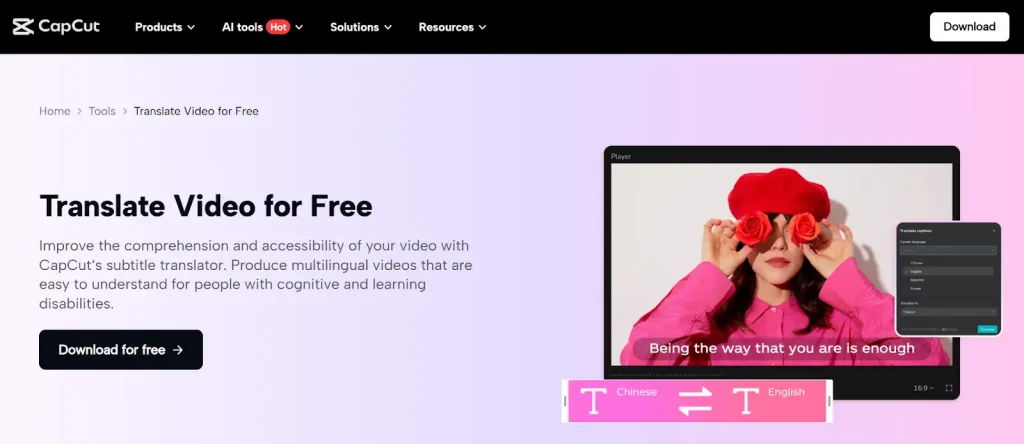
How to Use Capcut Video Translator?
- Upload Your Video: Start by uploading your video from your computer, Google Drive, Dropbox, or Myspace, or by scanning a QR code. Drag the video into CapCut to begin.
- Translate Subtitles: Once the video is uploaded, CapCut’s auto-caption feature will detect the spoken language. Go to Captions > Auto Captions > Generate to create subtitles. Then, navigate to the Translate interface, select your target language, and hit Translate to display the subtitles in your chosen language.
- Export & Share: After translation, you can export the video and share it directly on social media or download the final version to your device.
Capcut Video Translator (Pros & Cons)
| Capcut Pros | Capcut Cons |
| Ready-made templates for social media videos | Translated texts and original subtitles may overlap |
| Quick subtitle generation | Requires Pro subscription & AI credits for full features |
| Impressive audio/music collection for social media content | Limited availability in some regions; VPN may be required |
| AI-powered translation with voice cloning | Translation accuracy & lip-sync issues may require manual adjustments |
| Auto language detection & multilingual support | Length & frame-rate limits (≈15 minutes and ≤60 fps) |
| Customizable subtitles (fonts, colors, animations) | One-track editing & desktop version limitations |
| Easy-to-use interface | Lag & offline limitations in the mobile app |
| Free tier available | |
| Voice-over & caption features (text-to-speech, auto-captions, AI audio) | |
| Multi-platform access (mobile, desktop, web, TikTok integration) |
Capcut Pricing
Here’s a clear summary of the pricing for CapCut’s video translation service, which positions it among the top content creation tools and one of the best video voice translator apps available:
- Free Plan: $0/month on mobile & desktop. Offers basic editing and 1080p export with a watermark, but does not include the video translation feature.
- Standard Plan: $5.99/month (mobile only). Removes watermark and unlocks premium effects, but still lacks voice translation.
- Pro Plan: $19.99/month (or $179.99/year) on mobile, desktop & web. Unlocks all premium tools, 4K export, cloud storage, and includes the video translator feature.
- Teams Plan: $24.99/month per seat with the same features as Pro, but adds collaboration and shared asset capabilities.
6. Synthesia
Synthesia provides translations in more than 32 languages. It keeps the original speaker’s voice and offers accurate lip-syncing and voice cloning. These features make it a good choice for multilingual content marketing, where clear communication is essential.
Its editing features allow users to adjust the translated transcript as needed, ensuring their message remains consistent and accurate across languages.
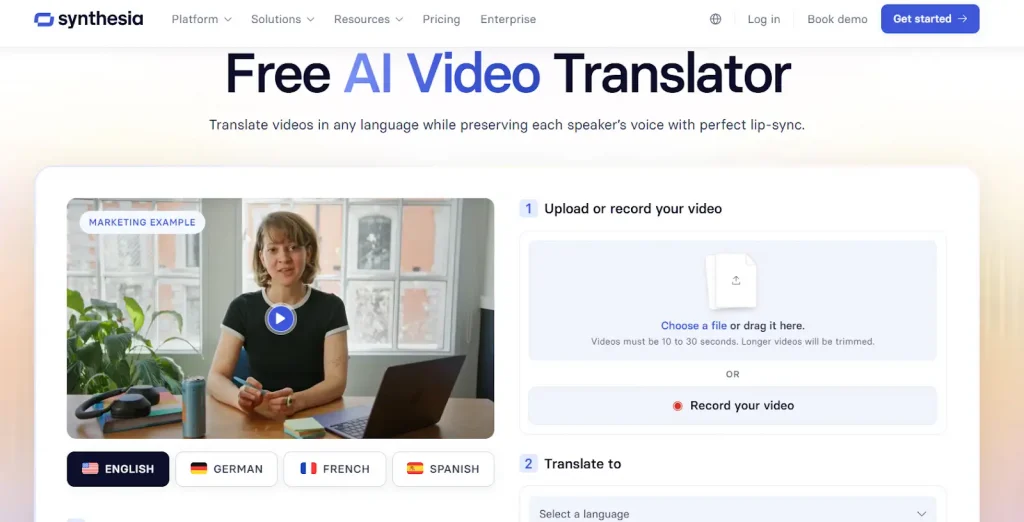
How to Use the Synthesia Video Translator App?
To use the Synthesia video translator app for free, follow these simple steps:
- Visit the Synthesia website to access the tool.
- Upload or Record Your Video: Choose a video file between 10 and 30 seconds and upload it. You can also record a video directly in the app.
- Select Your Translation Options: After uploading, select your preferred language and click “Translate for free.” The tool offers additional options such as lip-syncing, removing the watermark, generating subtitles, and using multiple voices.
Synthesia’s free plan lets you access these best-in-class video language translation features and create multilingual videos with ease, making it ideal for quick translations and content localization.
Synthesia Video Translator (Pros & Cons)
| Synthesia Pros | Synthesia Cons |
| Multilingual Support. It supports over 140 languages with easy localisation. | Limited emotional range; AI avatars lack emotional depth and expressions. |
| Natural voice cloning: Retains the original speaker’s tone and pacing. | Lip-sync issues; Sometimes speech and lip movements are misaligned. |
| High-quality avatars; Realistic avatars and voices outperform competitors. | Creative limitations: Restricted customization for complex animations. |
| User-friendly platform; Intuitive, easy for beginners and non-editors. | Content moderation issues: Strict content review policies may result in certain videos being rejected. |
| Scalable enterprise features; Suitable for large-scale video production. | Not ideal for high-emotion content; Best for training, not for emotional storytelling. |
| Editing tools include editable transcripts and script suggestions to improve accuracy. |
Synthesia Pricing
Synthesia offers flexible pricing options:
- Plans start at $29/month or $18/month when paid annually.
- Dubbing prices range from $0.8/min to $1.6/min, depending on whether you require lip-syncing.
- A free demo lets you try dubbing or translating a YouTube video before committing to a subscription.
7. Elevenlabs
It offers one of the best video translator apps, enabling users to translate videos into 29 languages with ease. With no sign-up or software required, users can instantly upload their videos and receive their desired translated formats in MP4, SRT, or VTT.
ElevenLabs truly shines with its impressive voice cloning feature, which captures the unique essence of the speaker. Additionally, it includes helpful features such as lip-syncing, speaker detection, and subtitle editing. Whether you’re translating videos in Spanish, English, or any other language, ElevenLabs is a fantastic choice to keep the content authentic and engaging.
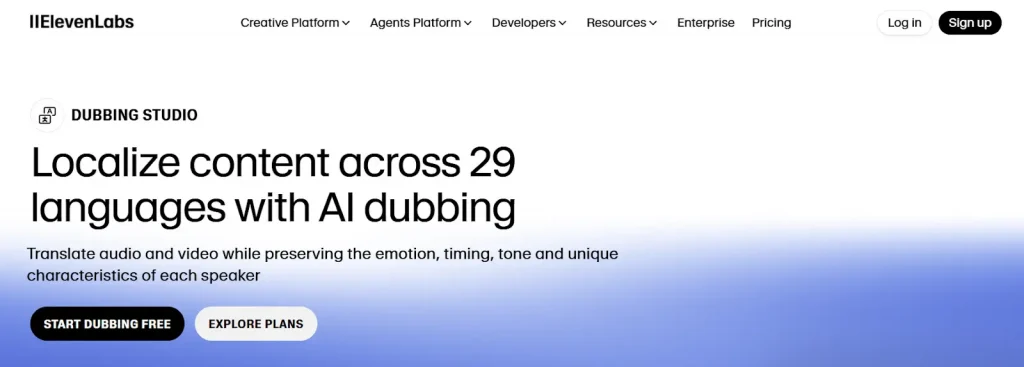
How to Use Elvenlans Online Video Translator?
- First, drag and drop your video file, or record directly from your browser.
- Choose the source language (original) and the target language from over 29 supported options.
- Click “Translate Now” to generate your translation. Once done, preview, refine, and export as text, subtitles, or video, ready for immediate use.
Note: This video voice translator app delivers 99% transcription accuracy, ensuring fluent, natural translations while preserving context and emotion.
Elevenlabs AI Video Translator (Pros & Cons)
| Elevenlabs Pros | Elevenlabs Cons |
| Supports 29 languages; Provides broad language coverage for diverse audiences. | Language limitations: Only works with the languages available in its multilingual model. |
| Handles multiple speakers; efficiently manages videos with multiple speakers. | Audio quality dependency: Translation accuracy can be affected by the quality of the original audio. |
| Authentic speaker style; Maintains the original tone and delivery for a natural feel. | |
| Automated translation process; Fully automates the process from upload to final translation and dubbing. |
Elevenlabs Pricing
ElevenLabs uses a credit-based pricing system that depends on the number of minutes of audio you need dubbed, whether you want a watermarked or non-watermarked version, and the specific plan you choose. You can pick from different plans based on your video translation needs and buy extra minutes if you need more. Here are the details of ElevenLabs’ video translation pricing:
- Free Plan: $0/month, no dubbing minutes included, but access to dubbing tools with attribution and no commercial use.
- Starter Plan: $5/month, includes 5 minutes of watermarked automatic dubbing and 6 minutes of watermarked Dubbing Studio minutes.
- Creator Plan: $11/month, includes 15 minutes of watermarked automatic dubbing and 20 minutes of watermarked Dubbing Studio. Additional minutes cost $0.60-$3/min.
- Pro Plan: $99/month, includes 50 minutes of automatic dubbing and 100 minutes of Dubbing Studio, with additional minutes priced from $0.48-$2.40/min.
- Scale Plan: $330/month, includes 250 minutes of automatic dubbing and 400 minutes of Dubbing Studio, with additional minutes priced from $0.36-$1.80/min.
- Business Plan: $1,320/month, includes 1,000 minutes of automatic dubbing and 1,100 minutes of Dubbing Studio, with additional minutes priced from $0.24-$1.20/min.
These plans provide flexibility for content creators who need YouTube affiliate program integration and for large enterprises with higher-volume video translation needs.
8. Veed
Veed is one of the best video translator apps, supporting over 125 languages and AI-powered voice translation. It also supports lip-syncing and retains background audio with 99.9% translation accuracy, making your videos feel authentic across different languages and cultures.
What sets Veed apart is its ease of use and advanced features. You can simply upload your video, select your target language, and generate subtitles or dubbing. Veed’s platform also allows for complete customization of subtitle appearance and downloading them, ensuring your brand’s voice remains consistent.
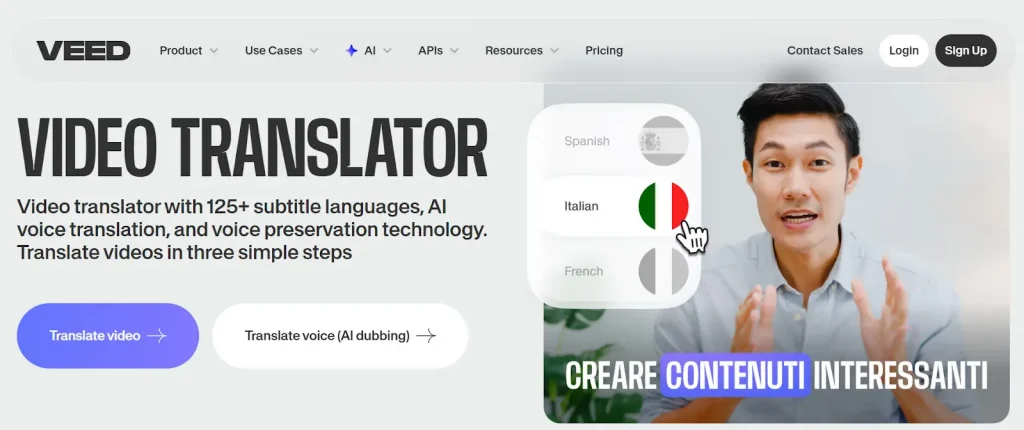
How To Use The Veed Video Translator Tool?
- First, go to the Veed website and upload your video file. Veed supports all major formats, including MP4, MOV, AVI, and WEBM.
- Next, choose your language and select your preferred voice. You can either use the original voice or pick from available AI voices. You can enable lip synchronization and keep the background audio if you wish.
- Finally, click “Dub Video” to translate your content. You can also add automatic subtitles with a single click. Once done, export or continue editing your video.
Veed Video Translation Service (Pros & Cons)
| Veed Pros | Veed Cons |
| Preserves the speaker’s original voice across languages | No lip‑sync/voice cloning on lower tiers. |
| Auto‑subtitles & translation in 125+ languages with up to 99.9 % accuracy | Large projects may lag or crash |
| Web‑based and intuitive interface, requiring no software installation and allowing projects to sync across devices | Free plan limitations: the free tier outputs watermarked 720p videos and has strict limits on video length and translation minutes. Additionally, many AI features sit behind paywalls. |
| Integrated editing and translation workflow; the translator is built into VEED’s video editor, making it easy to add subtitles or basic dubbing during edits | The Pro tier is costly, and users report confusing subscription tiers, unexpected auto‑renewal charges, and limited customer support. |
| Collaboration & brand kit; paid tiers include shared projects, templates, and brand‑kit tools so teams can manage assets and review translations together. | Limited voice & TTS quality – reviewers point out that VEED’s voice‑over and text‑to‑speech options lack variety compared to other voiceover tools |
| Cloud‑based workspace with broad format support; VEED’s editor accepts multiple formats and stores projects online, enabling creators to work from anywhere |
Veed Pricing
Veed AI Video Translator offers a Pro plan for $55 per month that includes subtitles and voice translation (dubbing). However, this plan covers only 4 hours of translation per year, at roughly $2.75 per minute.
9. Kapwing
Looking to reach a global audience effortlessly? Kapwing provides an affordable, efficient way to translate videos into over 100 languages, making it ideal for quick video localization.
What sets Kapwing apart is its AI-powered dubbing tool, which offers high-quality voice translation, lip-syncing, and voice cloning across 40+ languages. You can easily adjust pronunciation, timing, and even customize translations for branded terms. Its user-friendly interface allows seamless integration into your workflow, making it one of the best YouTube video translator apps available.
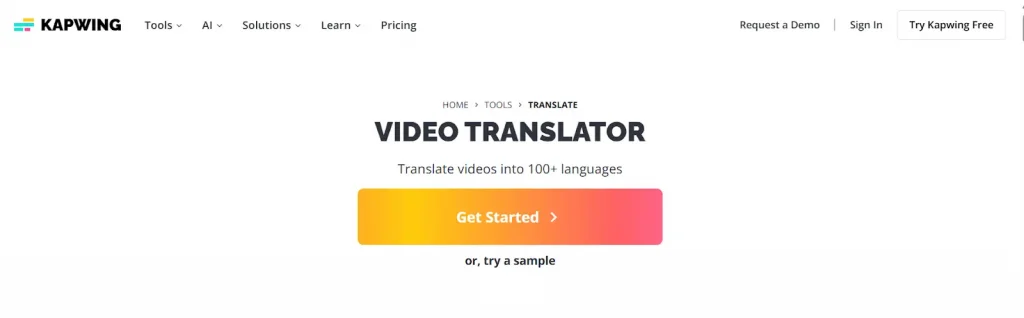
How to Use Kapwing Video Translator?
Here’s how to use Kapwing Video Translator:
- Upload your video, paste a URL, or record directly in the studio. Then, open the “Translate” tab in the left toolbar.
- Next, choose your target language. Pick a voice for the translation, either the original voice or one of 180+ AI voices available on the platform.
- Use “Advanced Settings” and “Review Transcript.” Click “Dub Video” to generate subtitles, dubbing, and a transcript. Afterward, you can add lip sync, make edits, and export your video.
Kapwing (Pros & Cons)
| Kapwing Pros | Kapwing Cons |
| User-friendly interface; perfect for beginners | Translation errors; May struggle with complex dialogue. |
| Affordable pricing: Only $24/month for up to 300 minutes of translation. | Missing pro features; lacks keyframe animation, color correction, and noise reduction |
| Wide language support: Covers a broad selection of global languages. | AI inconsistencies; auto‑subtitles and translations can be inaccurate, requiring manual corrections |
| AI‑powered voice dubbing and lip sync; produces natural‑sounding voice‑overs | |
| Advanced video editing options: crop, cut, resize, add animations, and customize | |
| Free to use with limitations; basic translation features available at no cost | |
| Browser‑based; no installation needed, and it works on any device |
Kapwing Pricing
In the Kapwing free plan, you can export 4-minute videos, 10 minutes of auto-subtitles, 2 minutes of text-to-speech, and 720p resolution. The Pro plan allows you to translate up to 300 minutes each month for just $24, making it an affordable option at only 8 cents per minute of translation. This pricing is quite competitive and offers great value. Here are the key features included in its Pro plan:
- Monthly: $24/month
- Annual: $16/month (billed annually at $192/year)
- Includes 300 minutes of translation per month, watermark removal, 120-minute video export, and 6GB file uploads.
- 80 minutes of premium text-to-speech, 500 AI credits, and 4K export.
10. Akool
Akool offers one of the best video translation services to reach international audiences. With support for over 155 languages, it enables you to seamlessly translate videos, subtitles, audio, and on-screen text, making it the perfect tool for global video marketing campaigns.
What sets Akool apart is its hyper-realistic lip-syncing and real-time translation engine. Whether you’re a YouTuber, educator, or business, Akool’s intuitive platform allows you to instantly localize your content, unlocking new markets with ease and efficiency.
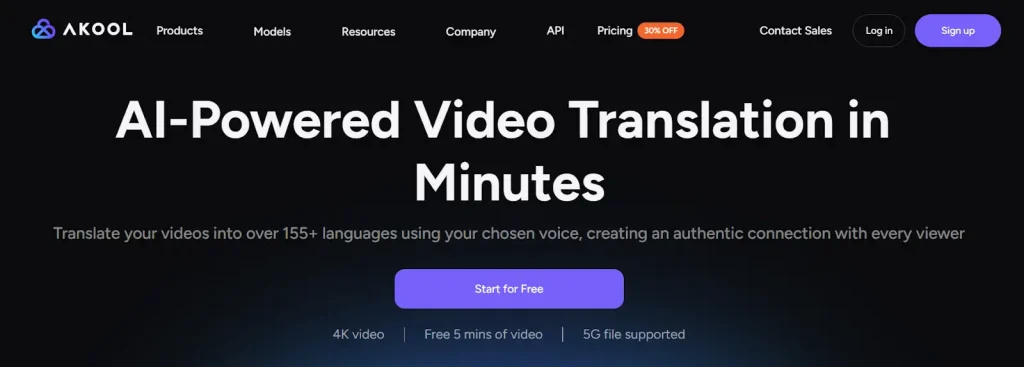
How to Use Akool’s AI-Powered Video Translation Tool?
- Upload your file or paste a URL into the platform.
- Next, select the language you want your video to be translated into.
- Turn on the AI Lip Sync feature for hyper-realistic mouth movements.
- Finally, review the translated subtitles and make any necessary adjustments before exporting your translated video.
Akool AI Video Translator (Pros & Cons)
| Akool Pros | Akool Cons |
| Extensive language support; translates subtitles into 100+ languages and offers AI dubbing in over 40 languages | Accuracy varies; auto‑subtitling works well for English (~85 %) but drops to 50–70 % for other languages; Akool translations often require manual corrections |
| Customizable voices & rules; Akool lets you choose or clone AI voices and define translation rules for up to 99 % accuracy | Usage limits: translation minutes are capped by your plan (e.g., 300 min/month on Pro) |
| All‑in‑one workflow; edit, subtitle, and dub videos in one tool, saving time and cost | Slow uploads/exports; large or complex videos may take a long time to upload/export or need splitting into chunks |
| Preserves video quality; maintains the original size and quality when adding translated subtitles and effects | Reliability & support issues; Some users report glitches, export failures, and poor customer support |
| Accessible pricing & ease of use; offers a free plan (ad‑free) and intuitive interface | |
| Choice of AI voices: users can select from multiple voices or clone their own for dubbing |
Akool Pricing
Akool follows a credit-based pricing model that is as follows:
- Free Plan: Provides 100 credits and API usage with a watermark.
- Professional Plan: It costs $21/month and offers 600 credits with full access.
- Studio Plan: Costs $350/month and provides 12,000 credits and 4K downloads.
- Enterprise Plan: Pricing is customizable based on the user’s needs.
Note: The Professional and Studio plans offer the first 3 days free for new users.
Conclusion
The best translator apps all try to do the same thing: help your videos travel around the world without losing their meaning or style. In this list, we looked at 10 of the best online video translator apps. Each one has its own strong points, like better language support, lip-sync, voice cloning, simple editing, or lower prices.
For influencers and content creators, brandID is an excellent choice. It brings translation, branding, and monetization together in a single dashboard, keeping your branding consistent across languages and markets. Try brandID’s AI video translator today to turn every video into a global asset that works harder for you.
FAQs
Yes. brandID stands out as the best free video translator app thanks to its intuitive interface, seamless multilingual subtitles, and AI-powered voice translation. Whether you’re a creator or entrepreneur, brandID helps you localize your videos quickly and affordably.
You can add multilingual power to your content with brandID’s best video translator app. Upload your file, and instantly translate your video into any language while keeping your brand’s unique voice. With authentic voice preservation and global reach, you can share the video on TikTok, Instagram, and YouTube without extra effort.
The difference lies in how the content is presented. Subtitles translate spoken content into on-screen text, allowing viewers to read while hearing the original audio. So, subtitles preserve the original voices and emotions.
Dubbing, on the other hand, replaces the original audio with a new track in the target language, offering a fully immersive experience where viewers can watch without reading subtitles.